Finding files with find
Use find to locate files by name, type, size, and age — then act on them with -delete or -exec.
Written and reviewed by Shreyash Prashu Last reviewed
What you'll learn
- How find traverses a directory tree and applies tests to every file it encounters
- The most useful tests: -name, -type, -size, -mtime, -maxdepth — and how to combine them
- How to act on results safely with -print, -delete, and -exec
Before you start
The last lesson ended on the one thing grep cannot do: ask about the files themselves — their size, their age, their name — rather than what is inside them. This lesson is that tool.
find walks the whole tree, matches files by their metadata, and can then act on every match in one stroke. Get its two-part shape — tests, then an action — and the rest is just vocabulary.
Why find exists
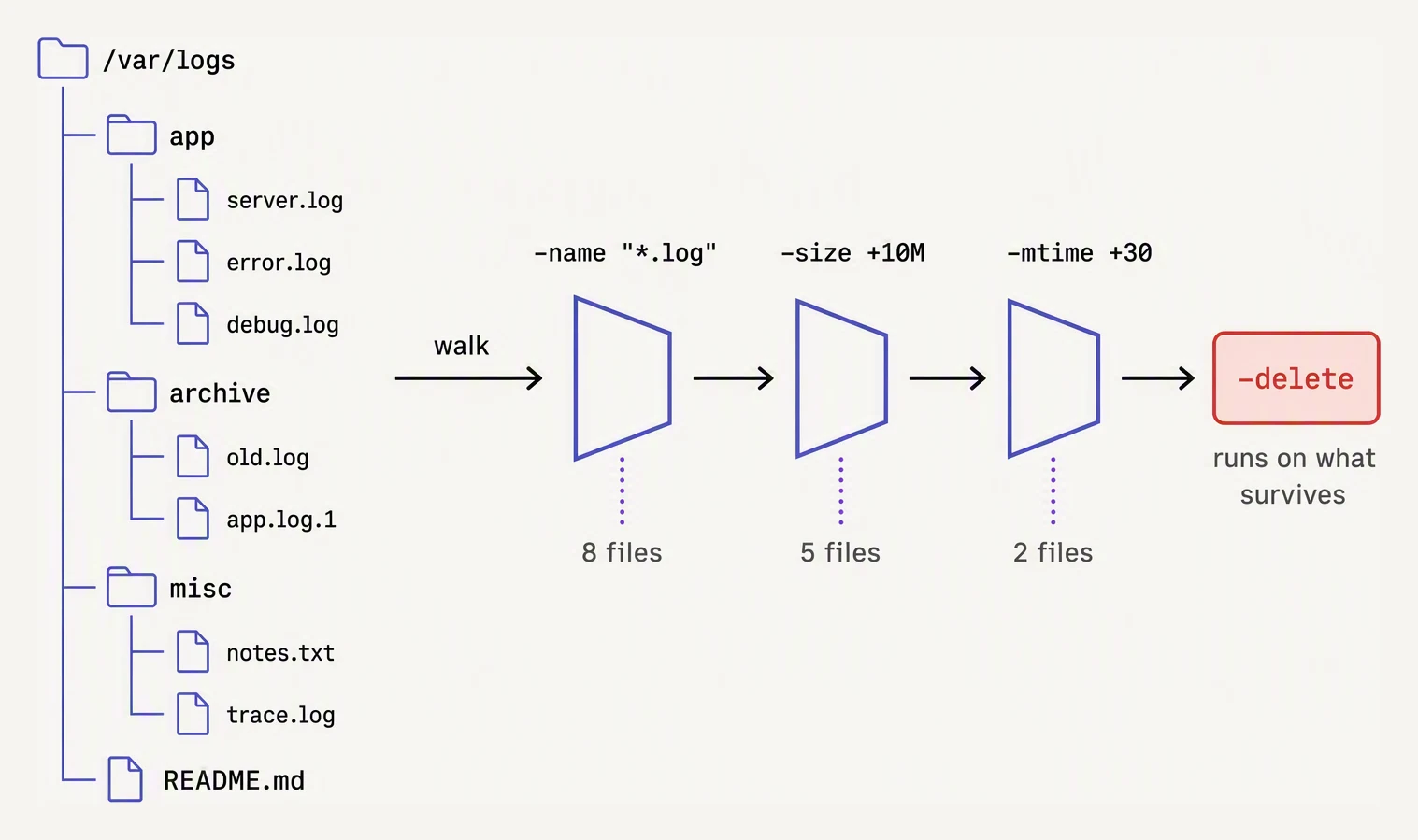
Predicates are filters applied left to right; the action runs on survivors.
grep searches inside files — it reads content and returns matching lines. find works one level up: it searches the filesystem itself, matching files and directories by their metadata — name, type, size, age, permissions — and then optionally acts on everything it matched.
The mental model is a pipeline with two stages:
- Tests — filters that decide whether a file is selected.
- Actions — what to do with each selected file.
find <path> [tests…] [action]find walks every file under <path> recursively. Each file is run through the tests in order. If all tests pass, the action fires. The default action is -print.
Core tests
Name matching
find . -name "*.log"./app/server.log
./tmp/debug.logThe double quotes around "*.log" are not optional. Without them, the shell expands * before find ever sees the argument. The expansion matches only files in the current directory whose names end in .log — not what you want. Always quote glob patterns passed to find.
For case-insensitive matching use -iname:
find . -iname "*.JPG"This matches photo.jpg, photo.JPG, and photo.Jpg equally.
File type
| Flag | Matches |
|---|---|
-type f | regular files |
-type d | directories |
-type l | symbolic links |
Adding -type f prevents false positives when a directory happens to be named something.log.
Size
find . -type f -size +10MThe + means more than 10 MB. Use -10M for less than 10 MB, or 10M (no prefix) for exactly 10 MB. Units: c bytes, k kilobytes, M megabytes, G gigabytes.
Modification time
find . -type f -mtime +30-mtime +30 means the file was last modified more than 30 days ago. Use -mtime -7 for files touched within the last 7 days.
A common point of confusion: -mtime counts in 24-hour periods, rounded down. A file modified 31.5 days ago satisfies -mtime +30.
Limiting depth
find . -maxdepth 2 -name "*.log"-maxdepth 1 restricts to the immediate directory only (no recursion). -maxdepth 2 adds one level of subdirectories. This keeps searches fast when you know where to look.
Combining tests
By default, multiple tests are joined with implicit AND — all must pass.
find . -type f -name "*.log" -size +10M -mtime +30Use -o for OR:
find . -name "*.tmp" -o -name "*.bak"Use ! (or -not) to negate:
find . -type f ! -name "*.log"When mixing -o with other tests, parentheses control grouping. Escape them from the shell with backslashes or wrap in quotes:
find . \( -name "*.tmp" -o -name "*.bak" \) -mtime +7Actions
-print (default)
Prints matched paths to stdout, one per line. You get this even without writing -print, but being explicit makes intent clear.
-delete
find . -type f -name "*.log" -size +10M -mtime +30 -print./logs/app-2025-11-01.log
./logs/app-2025-10-15.log
./tmp/crash-2025-09-30.logOnce confirmed:
find . -type f -name "*.log" -size +10M -mtime +30 -deleteNote: -delete also sets -depth implicitly. This means find processes directory contents before the directory itself — needed so that an empty directory can be removed after its contents are deleted.
-exec
-exec runs an arbitrary command on each matched file. The placeholder {} expands to the current file path. The action is terminated by \;:
find . -type f -name "*.log" -exec wc -l {} \; 142 ./app/server.log
1847 ./tmp/debug.logFor better performance, use + instead of \;. With +, find batches all matched paths into a single command invocation rather than one per file:
find . -type f -name "*.log" -exec wc -l {} +Use \; when the command cannot accept multiple arguments (e.g., some scripts), or when you need each file processed independently.
Putting it all together
The original question — find every .log file bigger than 10 MB and not touched in 30 days, then delete them:
find . -type f -name "*.log" -size +10M -mtime +30 -print./logs/api-2025-10-01.log
./logs/worker-2025-09-14.logAfter reviewing the output:
find . -type f -name "*.log" -size +10M -mtime +30 -deletefind vs grep — when to use which
| Goal | Tool |
|---|---|
| Locate files by name, size, age, or type | find |
| Search file contents for a pattern | grep |
| Find files containing a specific string | grep -r "pattern" . |
| Find files modified recently that contain a string | find to narrow, then grep via -exec |
They compose well:
find . -type f -name "*.log" -mtime -7 -exec grep -l "ERROR" {} +This finds .log files modified in the last 7 days and containing the word ERROR.
In one breath
find <path> [tests] [action] walks a tree and runs every file through your tests, firing an action on each that passes (default -print).
The tests are the vocabulary:
-name "*.log"(quote the glob so the shell does not eat it!)-inamefor case-insensitive-type f/d/l-size +10M-mtime +30(more than 30 days;-7for within 7)-maxdepth Nto stop recursing
Stack them — implicit AND by default, -o for OR, ! to negate, escaped \( \) to group.
Then act: -delete (no undo — always -print first), or -exec cmd {} \; (once per file) / -exec cmd {} + (batched, faster).
And find composes with grep via -exec grep -l to filter by metadata and contents at once.
Practice
Before the quiz, build the dangerous command in two safe steps: you want to delete every .tmp file under build/, no deeper than 2 levels, larger than 5 MB. Write the preview command first (what ending makes it safe?), then the deletion.
Then explain why find . -name *.tmp without quotes can silently search for the wrong thing entirely.
Quick check
A question to carry forward
Look closely at the command that ended this lesson: find ... -exec grep -l "ERROR" {} +. What is really happening there?
One tool (find) selects a set of files, and its results are handed to a second tool (grep) to filter further. You have now seen this shape twice — ps aux | grep nginx back in the grep lesson, and this find-into-grep here.
It is no coincidence; it is the single idea the entire Unix toolkit is built on. Every command does one small thing well, and you compose power by chaining them — feeding one program’s output straight into the next, or capturing it into a file.
The connector that makes this possible is the pipe (|), joined by redirection (>, <, >>). Master that glue and a dozen tiny commands become one expressive sentence. That is the next lesson.